
VS Code vs Sublime vs Atom: Which Editor Is Best in 2025?
Choosing a code editor in 2025 isn’t about tribal loyalty – it’s about matching an editor’s architecture, extension model, and workflow fit to the way you actually build software. In this guide, I’ll break down Visual Studio Code, Sublime Text, and Atom through a practical lens: performance on real projects, language tooling (LSP, debugging, linters), remote development, extension safety, and the small configuration decisions that quietly make or break day-to-day productivity.
I’m writing this as someone who’s spent a lot of years bouncing between editors across front-end, back-end, DevOps, and “why is this repo so huge?” enterprise codebases. We’ll cover how each editor works under the hood, common pitfalls (slow start-ups, runaway file watchers, extension bloat), and a short checklist you can follow to get a clean setup quickly. If you want the wider context of editor categories and alternatives, start with best code editors: what we’d pick before adding AI.
We’ll also touch on where AI features fit – and where they don’t. In particular: why autocomplete can feel magical one minute and dangerously misleading the next, and how to pick an editor setup that stays dependable even when AI is “helping”.
At a glance
| Editor | Best for | Trade-off | Our practical rating |
|---|---|---|---|
| VS Code | Most developers who want “IDE-like” features, remote dev, debugging, and a huge extension ecosystem | Can get heavy and inconsistent if you install everything and never prune | ★★★★★ |
| Sublime Text | Speed, focus, and editing feel; people who live in the keyboard and want a lightweight daily driver | Less “batteries included” tooling – you assemble more of the workflow yourself | ★★★★☆ |
| Atom | Legacy projects and nostalgia; niche workflows that depend on specific packages | Effectively end-of-life for mainstream use; maintenance and security expectations are different | ★★☆☆☆ |
More code editor guides and tooling are available if you want deeper dives into language setups, editor ergonomics, and workflow templates.
What problem a code editor actually solves
A good editor does three jobs at once:
- Editing: fast, predictable text manipulation at scale (multi-cursor, refactors, large-file handling).
- Understanding: turning text into structure – syntax highlighting, symbol search, “go to definition”, and project-wide navigation.
- Integrating: connecting your code to toolchains – linters, formatters, test runners, debuggers, terminals, containers, and remote environments.
The mistake I see most often is evaluating an editor like it’s a static product. In reality, modern editors are platforms. Your experience is the base editor + language tooling + extensions + how you configure project boundaries. That’s why one developer swears an editor is “instant” while another says it “lags constantly” – they’re not using the same thing anymore.
How modern editors work under the hood
All three editors present a similar surface: a file tree, tabs, a text area, and search. The differences show up in how they build “understanding” and “integrations”.
Conceptual overview
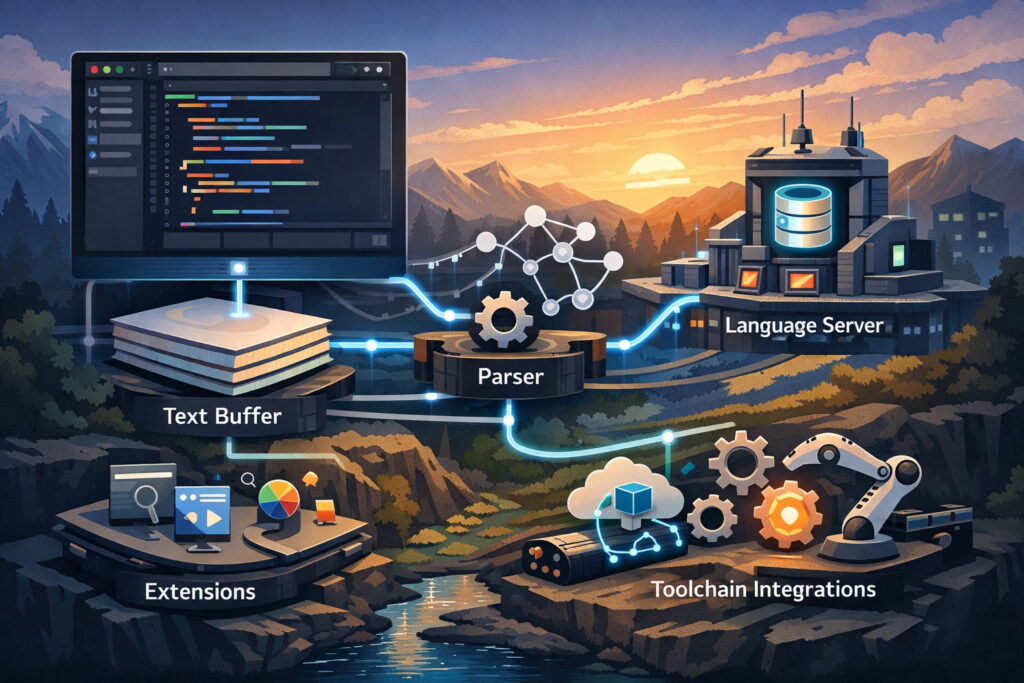
Here’s the simplified pipeline most developers actually feel:
- Text buffer + rendering: the core editing engine. This is where “typing feels crisp” lives.
- Project indexing: building a searchable map of files and symbols.
- Language tooling: increasingly done via Language Server Protocol (LSP), plus formatters and linters.
- Debugging: adapters that talk to language runtimes (Node, Python, JVM, etc.).
- Extensions/packages: everything from themes to Git integrations to AI assistants.
VS Code leans hard into “editor as platform”: deep extension support, strong debugging, and first-class remote development. Sublime leans into “editor as instrument”: fast, minimal friction, very strong editing primitives, and you add what you need. Atom was originally “editor as hackable playground” – extremely customisable – but its mainstream story changed once active development stopped.
Editor-by-editor: what you’re really choosing
VS Code
What it does well: VS Code is the default recommendation for a reason. It’s not just a text editor; with the right language tooling it becomes a capable, consistent development environment across stacks. Debugging, integrated terminal workflows, Git features, and remote dev are where it’s hard to beat.
- Great LSP experience (especially for popular languages)
- Debugging is first-class rather than bolted-on
- Remote workflows feel native (SSH, containers, WSL-style setups)
- Extension ecosystem is massive
Where it bites: VS Code’s strength is also its failure mode. If you install twenty extensions that all watch the same files, lint on save, format on save, and index everything – you’ll build your own lag machine. Many “VS Code is slow” complaints are really “my configuration is noisy”.
VS Code pros
- Excellent “one editor for everything” option
- Strong debugging and task runner workflows
- Remote development is genuinely useful, not a gimmick
- Large community means most problems have known fixes
VS Code cons
- Easy to accumulate extension bloat
- Inconsistent behaviour between projects if workspace settings aren’t disciplined
- Security surface area grows with every extension you add
Sublime Text
What it does well: Sublime is about speed and feel. It starts quickly, stays responsive, and is superb for text manipulation – especially if you use multi-cursor editing properly. In a lot of real-world work (reviewing PRs, editing configs, writing scripts, making quick changes), that responsiveness matters more than a full IDE stack.
- Fast startup and snappy editing even on older machines
- Excellent search and multi-cursor workflows
- Minimal friction: fewer moving parts by default
Where it bites: Sublime can absolutely be extended, but you will do more assembly yourself. If you want deep debugging, remote container workflows, and a “click and run” experience across languages, you’ll need to be deliberate about your package choices – or accept a more terminal-centric workflow.
Sublime Text pros
- Feels fast and stays fast
- Brilliant for editing-heavy tasks
- Less temptation to turn your editor into a fragile plugin tower
Sublime Text cons
- Not as “IDE-complete” out of the box
- Debug workflows are typically less integrated
- Some teams standardise on VS Code setups, so sharing configs may take more work
Atom
What it does well (today): Atom was loved because it was approachable and deeply hackable. If you had a quirky workflow, you could often bend Atom to your will. That spirit still matters – but it’s no longer the mainstream choice for most new setups.
Where it bites: The practical reality is that Atom is no longer actively developed in the way modern developers expect. That changes the risk calculation: compatibility moves slower, security expectations shift, and package ecosystems thin out. If you’re attached to the Atom style, the best route is usually a maintained fork rather than relying on the original distribution.
Atom pros
- Hackable and customisable (by design)
- Some legacy package workflows still exist in the wild
Atom cons
- Not a sensible default for new users in 2025
- Package ecosystem and long-term maintenance are the core concerns
- Security posture depends heavily on what you install and how you update
Performance: what actually makes an editor “feel fast”
Editor performance isn’t just CPU and RAM. It’s the number of background processes you’ve invited into your workspace. The three biggest culprits across all editors:
- Indexing too much: giant folders, vendor directories, build outputs, caches.
- File watching storms: watchers reacting to generated files in loops.
- Competing formatters/linters: multiple tools fighting on save.
My rule of thumb: your editor should treat the project like a curated workspace, not a raw filesystem dump. If you open a monorepo, be intentional about what counts as “source” versus “generated”.
Practical performance wins (especially in VS Code)
- Exclude noisy directories (common examples: dependency folders, build outputs, caches).
- Turn off expensive features per workspace if the project doesn’t need them (for example, disable certain validations in generated code).
- Audit extensions quarterly: remove anything you haven’t used recently.
- Prefer one formatter per language and one linter pipeline that’s consistent with your team.
In teams, the fastest way to create “my editor is broken” support tickets is to let everyone invent their own lint + format stack. Standardise early.
Language tooling: the LSP layer and why it matters more than the editor brand
For most mainstream languages, your “smart editor” features come from language servers, not the editor itself. That’s why two editors can both offer “go to definition” – but one feels more accurate or stable depending on the server implementation and configuration.
What you should look for:
- Server maturity: does it handle large projects without timing out?
- Diagnostics quality: are warnings meaningful or just noise?
- Refactor safety: rename/symbol operations that don’t break imports.
- Format consistency: predictable output across machines and CI.
VS Code tends to make this easier because many popular language toolchains have a very “happy path” setup there. Sublime can match it, but you may spend more time choosing and tuning packages. Atom can be workable for some stacks, but you’ll hit more edge cases as ecosystems move on.
Remote development and “my code doesn’t run on my laptop” reality
Modern projects often need containers, remote build boxes, or a Linux toolchain even if you’re on a different host OS. This is where editor choice has become less about “text editing” and more about “where does my dev environment live?”
- VS Code: shines if you frequently develop over SSH, inside containers, or in a Linux-like environment from another OS.
- Sublime: workable for remote editing, but the workflow usually feels more like “edit here, run there” rather than a fully integrated remote IDE.
- Atom: historically had options, but it’s not where the momentum is now.
If you’ve ever lost an afternoon to “works on my machine” arguments, consider this a quiet endorsement of remote-first workflows – not because they’re trendy, but because they make environments reproducible.
Extension safety and supply-chain risk: the hidden cost of convenience
Extensions are power – and risk. Every extension you install expands your editor’s attack surface and increases the chance of accidental secrets exposure, telemetry you didn’t intend, or just plain instability. The uncomfortable truth: the more “magical” your editor feels, the more code you’re running that you didn’t write.

Practical guardrails I recommend:
- Install the minimum needed to do your job well – then stop.
- Prefer reputable publishers and widely used extensions with a clear maintenance history.
- Be cautious with “helper” extensions that touch the filesystem broadly (especially ones that claim to automate lots of things).
- Separate roles: keep a “clean” profile for sensitive repos, and a more experimental setup for tinkering.
This matters even more once you add AI assistants. If you want a grounded explanation of why AI sometimes produces plausible nonsense, read AI hallucinations: why “confident wrong” happens. Your editor should be the place where truth is enforced (tests, linters, types), not where confident guesses become production code.
AI in editors: the useful parts, the risky parts, and what to optimise for
AI coding features sit on a spectrum:
- Low-risk help: boilerplate generation, docstring drafts, explaining unfamiliar code, suggesting refactors you already understand.
- Medium-risk help: writing tests, translating between frameworks, generating glue code.
- High-risk help: security-sensitive code, auth flows, cryptography, data migrations, or anything you can’t easily verify.
When developers say “this model feels smarter”, they’re often describing a mix of reasoning quality, tool integration, and how well it uses your context (repo structure, errors, logs).
Editor choice here is more practical than philosophical: you want an environment that makes verification easy. Strong linting, fast tests, reliable debugging, and predictable formatting matter more than fancy suggestions.
Common misconfigurations and pitfalls (real-world, not theoretical)
These are the issues I see repeatedly when helping teams standardise editor setups.
Extension overload and “death by a thousand helpers”
- Too many extensions that overlap (multiple Git tools, multiple formatters, multiple linters).
- Extensions that inject UI noise and slow down editor responsiveness.
- Old extensions left installed “just in case” that now conflict with newer tooling.
Formatting wars
- Formatter A runs on save, then linter fix runs, then formatter runs again – and your file changes twice.
- Editor formatting differs from CI formatting, creating churn in pull requests.
Workspace sprawl
- Opening the repo root when you only need a subproject.
- Letting generated directories sit next to source directories without exclusions.
- Indexing massive folders that should never be searched.
Keybinding drift
- Copying a keymap from someone else without understanding what changed.
- Inconsistent shortcuts across machines because settings sync is half-enabled.
Security blind spots
- Installing extensions that can read your workspace and send data externally, without noticing.
- Keeping secrets in plain text files that your editor happily indexes and suggests.
If you only fix one thing: treat extensions like dependencies. You wouldn’t add random packages to production without thought – don’t do it to your editor either.
Practical setups that stay stable
Below are three “clean” setups designed to avoid the usual failure modes. They’re deliberately boring – because boring editor setups are reliable.
VS Code: a minimal, dependable baseline
Goal: keep VS Code fast, predictable, and consistent across projects.
- Install only your language essentials (one official language extension if available, one formatter, one linter integration).
- Enable format-on-save only if the team agrees on the formatter.
- Use workspace settings to scope behaviour per repo.
{ "editor.formatOnSave": true, "files.watcherExclude": { "**/node_modules/**": true, "**/dist/**": true, "**/build/**": true, "**/.cache/**": true }, "search.exclude": { "**/node_modules": true, "**/dist": true, "**/build": true }, "telemetry.telemetryLevel": "off" }That last line matters if you’re working in regulated environments or simply prefer to minimise data sharing. Keep in mind: disabling telemetry doesn’t stop every third-party extension from doing its own thing, which is another reason to keep extensions lean.
Sublime Text: fast editor, terminal-first workflow
Goal: use Sublime for elite editing speed, and push “running” and “debugging” into the terminal or dedicated tooling.
- Use Sublime as your primary editor for editing and navigation.
- Lean on the terminal for builds, tests, and debugging unless you truly need editor-integrated debugging.
- Add only a few packages you trust and understand (syntax, LSP if needed, a file finder enhancer).
This is a great match for people who already have a solid CLI workflow and want an editor that never feels like it’s thinking too hard.
Atom: only when you have a specific reason
Goal: avoid pretending Atom is a modern default, and instead treat it as a niche tool for legacy workflows.
- Use it only if you depend on a specific package workflow you can’t easily migrate yet.
- Keep it isolated from sensitive repos.
- Plan a migration path so you’re not stuck later.
If what you loved was the Atom “feel”, you’ll usually be happier moving to a maintained fork that continues the ecosystem rather than relying on an unmaintained base.
So, which editor should you pick?
Here’s the decision logic I use when advising teams and individuals.
Pick VS Code if you want the most capability with the least friction
- You work across multiple languages and want consistent tooling.
- You want strong debugging and integrated workflows.
- You do remote development, containers, or reproducible environments.
Pick Sublime Text if you value speed, focus, and editing feel above everything
- You spend a lot of time reading and editing code rather than configuring tooling.
- You prefer a terminal-first workflow.
- You want an editor that stays responsive under pressure.
Avoid Atom as a default in 2025
- Use it only for legacy reasons or very specific workflows.
- For most people, investing time into a current ecosystem pays off quickly.
Comparison table: the realities that matter in daily work
| Criteria | VS Code | Sublime Text | Atom |
|---|---|---|---|
| Startup + responsiveness | Good (can degrade with extensions) | Excellent | Variable (ecosystem dependent) |
| Language tooling (LSP) | Excellent for mainstream stacks | Very good (more assembly) | Inconsistent (less momentum) |
| Debugging | Excellent | Usually external/terminal-led | Limited compared to modern defaults |
| Remote dev | Best-in-class | Possible, but less integrated | Not the focus now |
| Extension ecosystem | Huge | Solid, curated by user choice | Fragmented / legacy-heavy |
| Best “set it and forget it” setup | Yes, if you keep it lean | Yes, by default | No (requires extra caution) |
A short checklist you can follow
- Decide your workflow first: terminal-first or editor-first? local-only or remote?
- Install the editor and run it for a day with no extensions.
- Add language support for your main language only (one LSP path, one formatter).
- Configure project boundaries: exclude dependency and build folders from watchers and search.
- Turn on formatting only after you’ve aligned with your team (or your own consistent standard).
- Audit extensions: remove anything unused, avoid unknown publishers, be cautious with “automation” extensions.
- Make verification easy: ensure tests and linting are quick to run and obvious when they fail.
- Write down your baseline: a small “Editor Setup” note in the repo saves future onboarding time.
If you want the broader landscape (including lightweight editors, IDEs, and the emerging “AI-native” tools), revisit best code editors – what we’d pick before adding AI for the full shortlist and rationale.
VS Code vs Sublime vs Atom FAQs
Only if you let it become heavy. VS Code’s base experience is fine, but it’s designed to be extended. Keep extensions minimal, exclude noisy directories, and avoid overlapping tooling. Most performance issues I diagnose are configuration issues, not editor limitations.
If you value speed, responsiveness, and editing feel, yes. Sublime’s value isn’t “more features”; it’s fewer friction points. For people who spend hours a day inside a text editor, that adds up quickly.
You can use it, but “safe” depends on what you install and how you treat the environment. For most developers, it’s not the best place to invest new setup time. If you need the Atom experience, look at maintained alternatives that continue its philosophy.
No. Pick an editor that makes verification easy: tests, debugging, reliable formatting, and predictable tooling. AI is an add-on. And if you haven’t internalised why AI can sound right while being wrong, read AI hallucinations: why “confident wrong” happens before you trust it with anything sensitive.
Define a minimal baseline: one recommended editor, one formatter, one linter path, and a short repo document explaining workspace settings and exclusions. Make it boring, then enforce it in CI so editor differences don’t leak into pull requests.
Verdict
If you want one answer that fits most developers in 2025, it’s VS Code – with a deliberate, minimal extension strategy. Sublime Text is the best choice if you care most about speed and editing feel and you’re comfortable leaning on the terminal for tooling. Atom is no longer a sensible default for new setups, but it can still exist as a legacy tool for specific workflows – ideally with a migration plan.
For more templates, language-specific setups, and editor workflow deep dives, browse more code editor guides and tooling.
If you found this content helpful,
please consider sharing!:
